Troubleshoot an invisible model
中文 | English
Run this command at the repository root to replay the examples through the local Unity MCP. The command also captures screenshots in both languages.
python Docs/Manual/manual/tools/tutorials.py run model-not-displaying --capture
Click to expand MCP actionsClick to collapse MCP actions
Prepare the teaching sample. The recipe provides ${variables}.
{
  "variables": {
    "asset": "${fixture}/Tutorial_RenderCheck.prefab",
    "material": "${fixture}/Tutorial_RenderCheck.mat"
  },
  "calls": [
    {
      "tool": "invoke",
      "arguments": {
        "path": "static:UnityEditor.AssetDatabase/CreateFolder",
        "args": [
          "${fixtureParent}",
          "${folder}"
        ]
      },
      "expect": {
        "contains": "(String)"
      }
    }
  ]
}
1. Check the material shader
Select the model's material in Project and check whether Shader supports the active render pipeline. The Mod SDK uses URP. Try a known working URP material on a copy of the model to isolate a material problem, then move the textures and colours to a compatible shader. The example reads the shader from a vehicle material and checks support on this machine.
Click to expand MCP actionsClick to collapse MCP actions
[
  {
    "tool": "invoke",
    "arguments": {
      "path": "static:UnityEditor.AssetDatabase/CopyAsset",
      "args": [
        "Packages/com.shanghaiwindy.coreresources/BuiltInVehicles/Altius-U/Art/Default-FastProp.mat",
        "${material}"
      ]
    },
    "expect": {
      "contains": "(Boolean) True"
    }
  },
  {
    "tool": "inspect",
    "arguments": {
      "path": "asset:${material}/shader/name"
    },
    "expect": {
      "contains": "WindyVerse/Vehicle/FullPBR"
    }
  },
  {
    "tool": "inspect",
    "arguments": {
      "path": "asset:${material}/shader/isSupported"
    },
    "expect": {
      "contains": "(Boolean) True"
    }
  }
]
2. Check the Renderer and material slots
Select the child object that draws the mesh. Check the enable box on its Mesh Renderer or Skinned Mesh Renderer component. Expand Materials and verify the material references.
Click to expand MCP actionsClick to collapse MCP actions
[
  {
    "tool": "prefab_edit",
    "arguments": {
      "json": {
        "path": "${asset}",
        "mode": "create",
        "component": "UnityEngine.MeshRenderer",
        "child": "Hull",
        "children": [
          "Hull"
        ],
        "values": {
          "m_Enabled": true
        },
        "references": [
          {
            "property": "m_Materials.Array.data[0]",
            "asset": "${material}",
            "type": "UnityEngine.Material"
          }
        ]
      }
    },
    "expect": {
      "equals": {
        "ok": true
      }
    }
  },
  {
    "tool": "inspect",
    "arguments": {
      "path": "asset:${asset}/Hull/GetComponent(MeshRenderer)/enabled"
    },
    "expect": {
      "contains": "(Boolean) True"
    }
  },
  {
    "tool": "inspect",
    "arguments": {
      "path": "asset:${asset}/Hull/GetComponent(MeshRenderer)/sharedMaterial/shader/name"
    },
    "expect": {
      "contains": "WindyVerse/Vehicle/FullPBR"
    }
  }
]
3. Check the Camera's Culling Mask
Find the model object's Layer at the top of the Inspector. Select the Camera that renders the view and include that layer in its Culling Mask. The example excludes the Default layer and then adds it back.
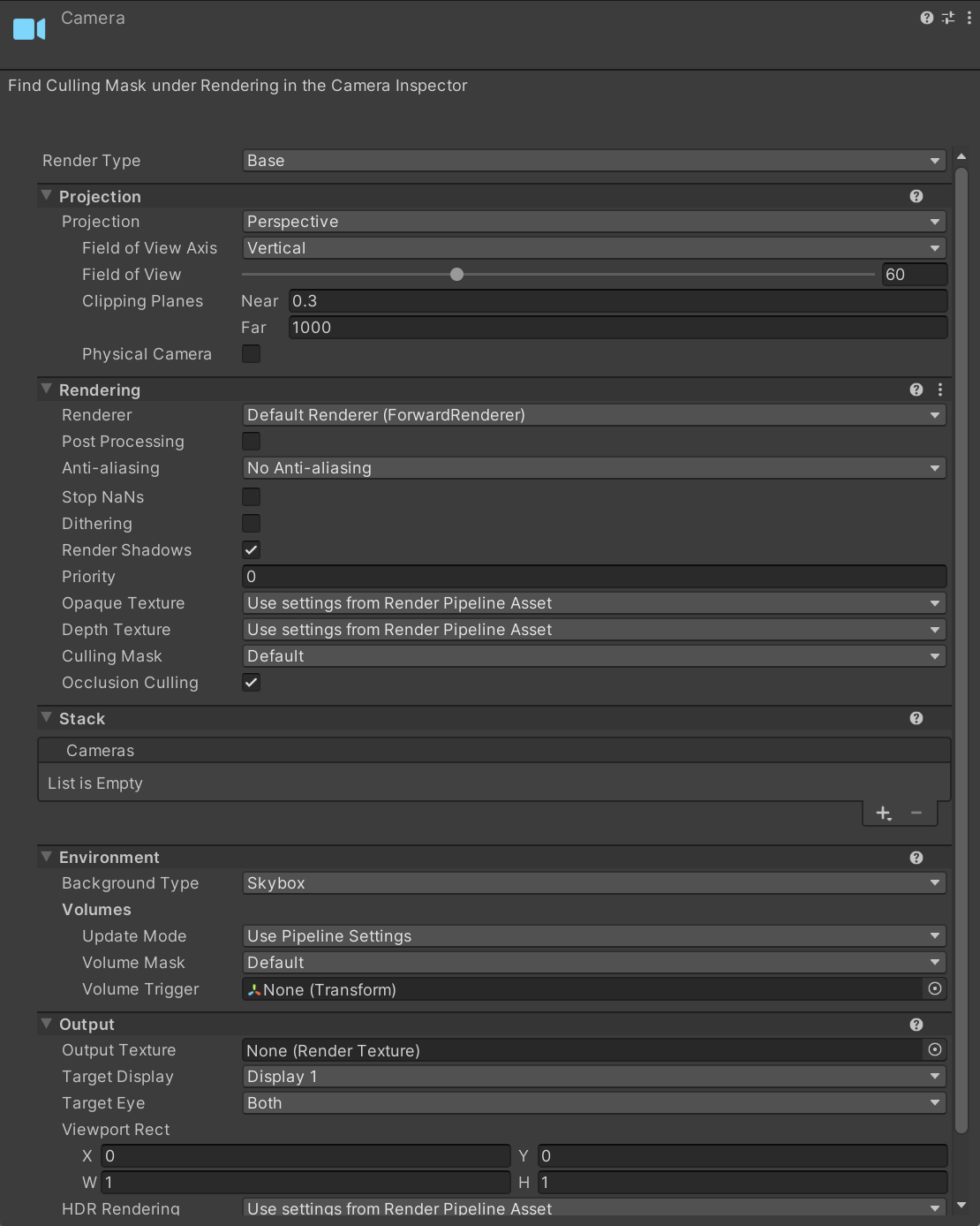
Click to expand MCP actionsClick to collapse MCP actions
[
  {
    "tool": "prefab_edit",
    "arguments": {
      "json": {
        "path": "${asset}",
        "mode": "update",
        "component": "UnityEngine.Camera",
        "values": {
          "m_CullingMask": {
            "serializedVersion": 2,
            "m_Bits": 0
          }
        }
      }
    },
    "expect": {
      "equals": {
        "ok": true
      }
    }
  },
  {
    "tool": "inspect",
    "arguments": {
      "path": "asset:${asset}/GetComponent(Camera)/cullingMask"
    },
    "expect": {
      "contains": "(Int32) 0"
    }
  },
  {
    "tool": "inspect",
    "arguments": {
      "path": "asset:${asset}/Hull/layer"
    },
    "expect": {
      "contains": "(Int32) 0"
    }
  },
  {
    "tool": "prefab_edit",
    "arguments": {
      "json": {
        "path": "${asset}",
        "mode": "update",
        "component": "UnityEngine.Camera",
        "values": {
          "m_CullingMask": {
            "serializedVersion": 2,
            "m_Bits": 1
          }
        }
      }
    },
    "expect": {
      "equals": {
        "ok": true
      }
    }
  },
  {
    "tool": "inspect",
    "arguments": {
      "path": "asset:${asset}/GetComponent(Camera)/cullingMask"
    },
    "expect": {
      "contains": "(Int32) 1"
    }
  }
]
Older projects had a ShanghaiWindy → Set Rendering LayerMask menu. In the current project, check the object's Layer, the camera that renders it, and its material. If the mesh appears in Scene View and disappears only in the game camera, check that camera's mask first.