Set the Steam game folder
中文 | English
Run this command at the repository root to replay the examples through the local Unity MCP. The command also captures screenshots in both languages.
python Docs/Manual/manual/tools/tutorials.py run set-steam-game-folder --capture
Click to expand MCP actionsClick to collapse MCP actions
Prepare the teaching sample. The recipe provides ${variables}.
{
  "variables": {
    "sampleLuaProject": "${fixture}/LuaProject"
  },
  "calls": [
    {
      "tool": "invoke",
      "arguments": {
        "path": "static:UnityEditor.AssetDatabase/CreateFolder",
        "args": [
          "${fixtureParent}",
          "${folder}"
        ]
      },
      "expect": {
        "contains": "(String)"
      }
    },
    {
      "tool": "invoke",
      "arguments": {
        "path": "static:System.IO.Directory/CreateDirectory",
        "args": [
          "${fixture}/LuaProject/resources/windows/default"
        ]
      },
      "expect": {
        "contains": "DirectoryInfo"
      }
    },
    {
      "tool": "invoke",
      "arguments": {
        "path": "static:System.IO.File/WriteAllText",
        "args": [
          "${fixture}/LuaProject/main.lua",
          "return {}\n"
        ]
      },
      "expect": {
        "contains": "OK:"
      }
    }
  ]
}
1. Find LuaProject in the Steam installation
In the Steam Library, right-click the game and choose Manage → Browse local files. Open dlc/LuaProject under the installation and check for main.lua and resources/windows/default. For example, older DE installs used steamapps\common\PanzerWar-DE\dlc\LuaProject. Use the actual location Steam opens.
Click to expand MCP actionsClick to collapse MCP actions
Check the directory markers in the teaching sample. Open Steam's local-files menu manually.
[
  {
    "tool": "invoke",
    "arguments": {
      "path": "static:System.IO.File/Exists",
      "args": [
        "${sampleLuaProject}/main.lua"
      ]
    },
    "expect": {
      "contains": "(Boolean) True"
    }
  },
  {
    "tool": "invoke",
    "arguments": {
      "path": "static:System.IO.Directory/Exists",
      "args": [
        "${sampleLuaProject}/resources/windows/default"
      ]
    },
    "expect": {
      "contains": "(Boolean) True"
    }
  }
]
2. Set the folder in the Editor
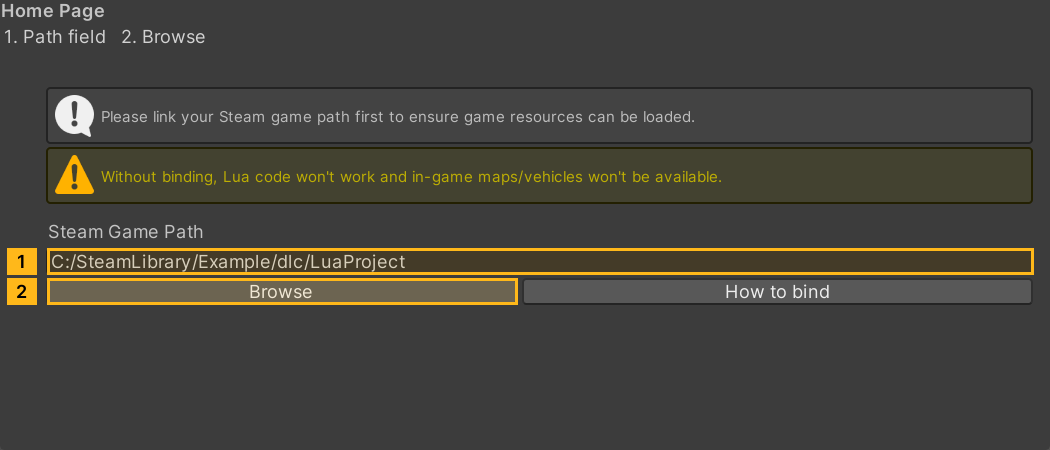
Open Framework - 框架 → 0. Home Page. Enter the LuaProject path in Steam Game Path, or click Browse, select the folder and confirm. The current home page saves changes to Assets/EditorStorage.json automatically. Older versions used a Save button. A valid path makes shortcuts such as the test range available.
Click to expand MCP actionsClick to collapse MCP actions
[
  {
    "tool": "inspect",
    "arguments": {
      "path": "static:ShanghaiWindy.Editor.EditorStorage/Info/luaProjectFolder"
    },
    "expect": {
      "contains": "(String)"
    }
  }
]
Click to expand MCP actionsClick to collapse MCP actions
Save the setting for the current project. Replace ${steamLuaProject} with the real absolute LuaProject path. The standard replay leaves the setting alone.
[
  {
    "tool": "inspect_set",
    "arguments": {
      "path": "static:ShanghaiWindy.Editor.EditorStorage/Info/luaProjectFolder",
      "value": "${steamLuaProject}"
    }
  },
  {
    "tool": "invoke",
    "arguments": {
      "path": "static:ShanghaiWindy.Editor.EditorStorage/Save",
      "args": []
    }
  },
  {
    "tool": "inspect",
    "arguments": {
      "path": "static:ShanghaiWindy.Editor.EditorStorage/Info/luaProjectFolder"
    }
  }
]