Configure Vehicle Zoom Ratios
中文 | English
Run this command at the repository root to replay the examples through the local Unity MCP. The command also captures screenshots in both languages.
python Docs/Manual/manual/tools/tutorials.py run zoom-ratio-config --capture
Click to expand MCP actionsClick to collapse MCP actions
Prepare the teaching sample. The recipe provides ${variables}.
{
  "variables": {
    "asset": "${fixture}/Tutorial_ZoomProfile.asset",
    "vehicle": "${fixture}/Tutorial_VehicleTextData.asset",
    "gun": "${fixture}/Tutorial_SharedGun.asset"
  },
  "calls": [
    {
      "tool": "invoke",
      "arguments": {
        "path": "static:UnityEditor.AssetDatabase/CreateFolder",
        "args": [
          "${fixtureParent}",
          "${folder}"
        ]
      },
      "expect": {
        "regex": "\\(String\\) [a-f0-9]{32}"
      }
    }
  ]
}
This tutorial sets the binocular and sight zoom ratio ranges of a vehicle with a ZoomProfileData asset. Field names are kept exactly as they appear in the source.
1. Create a ZoomProfileData asset
In the Project window choose Create > A Panzer War - 装甲纷争 > G Ground Vehicle - 地面载具 > Base - 载具配置 > Zoom - 倍率 to create a ZoomProfileData asset. Expand Zoom Name (zoomName) and set Default Name to Tutorial Zoom.
This example uses separate teaching assets and leaves existing vehicle configurations untouched.
Click to expand MCP actionsClick to collapse MCP actions
[
  {
    "tool": "invoke",
    "arguments": {
      "path": "static:UnityEditor.AssetDatabase/CreateAsset",
      "args": [
        "@static:UnityEngine.ScriptableObject/CreateInstance(ShanghaiWindy.Core.ZoomProfileData)",
        "${asset}"
      ]
    },
    "expect": {
      "contains": "OK:"
    }
  },
  {
    "tool": "inspect_set",
    "arguments": {
      "path": "asset:${asset}/zoomName/defaultName",
      "value": "Tutorial Zoom"
    },
    "expect": {
      "contains": "OK:"
    }
  },
  {
    "tool": "inspect_set",
    "arguments": {
      "path": "static:UnityEditor.Selection/activeObject",
      "value": "@asset:${asset}"
    },
    "expect": {
      "contains": "OK:"
    }
  }
]
2. Set the zoom ratio range
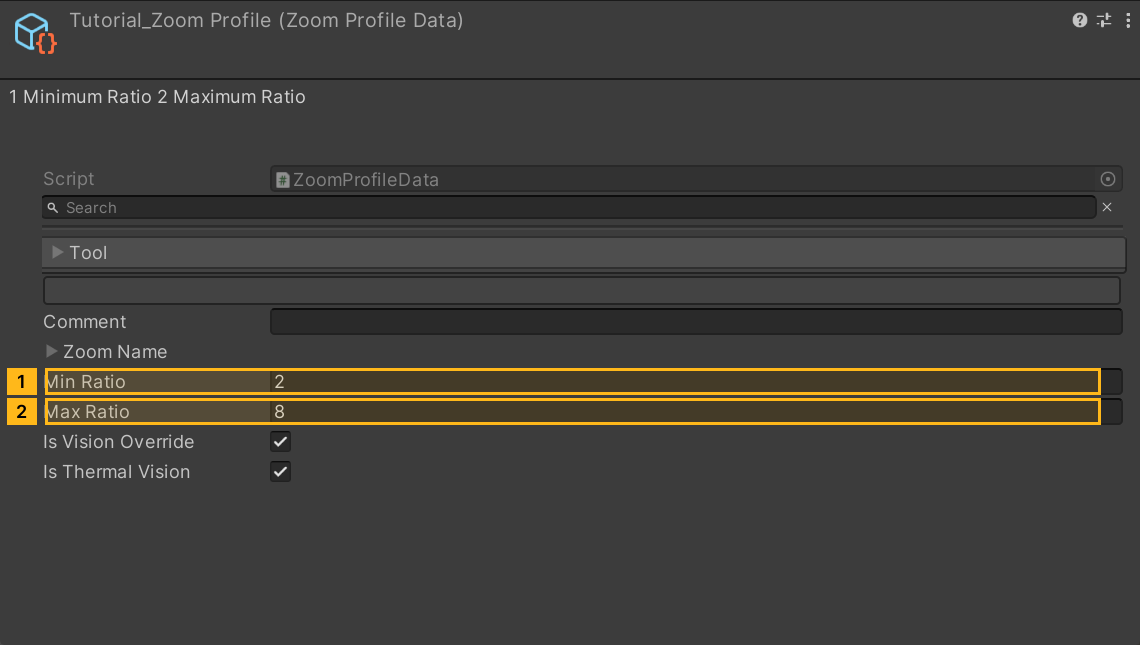
minRatio defaults to 1.9 and maxRatio defaults to 3.5. Use positive ratios and keep minRatio less than or equal to maxRatio; this is an author constraint, with no validation here in code. The example sets minRatio = 2 and maxRatio = 8 as the low and high endpoints.
At runtime these two values become the available ratio range: BaseVehiclePawn.GetZoomRatio reads minRatio and maxRatio from binocularZoomProfileData for binocular zoom and from zoomProfileData for sight zoom, and falls back to built-in ranges when the asset is null. VehicleCameraZoom then converts the ratio into a horizontal field of view and interpolates within that range.
Click to expand MCP actionsClick to collapse MCP actions
[
  {
    "tool": "inspect_set",
    "arguments": {
      "path": "asset:${asset}/minRatio",
      "value": "2"
    },
    "expect": {
      "contains": "OK:"
    }
  },
  {
    "tool": "inspect_set",
    "arguments": {
      "path": "asset:${asset}/maxRatio",
      "value": "8"
    },
    "expect": {
      "contains": "OK:"
    }
  },
  {
    "tool": "inspect",
    "arguments": {
      "path": "asset:${asset}/minRatio"
    },
    "expect": {
      "contains": "2"
    }
  },
  {
    "tool": "inspect",
    "arguments": {
      "path": "asset:${asset}/maxRatio"
    },
    "expect": {
      "contains": "8"
    }
  }
]
3. Vision override and thermal vision
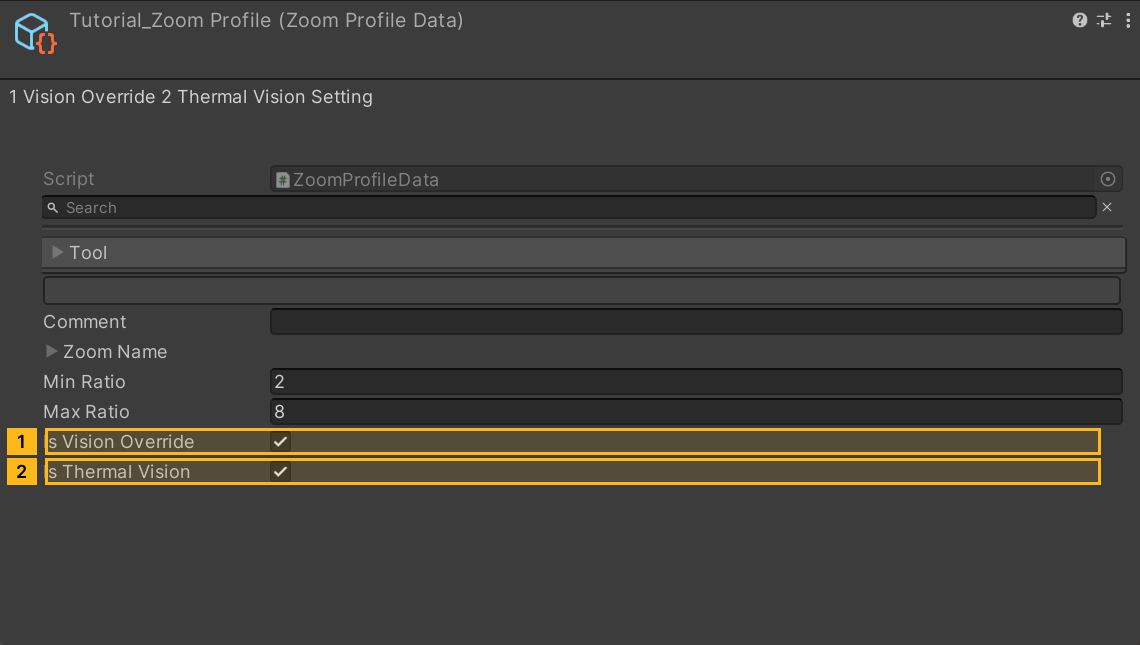
Enable Is Vision Override (isVisionOverride) to reveal Is Thermal Vision (isThermalVision). Both default to false; this example sets both to true. A runtime thermal lock can still disable thermal vision, so the setting does not guarantee an unconditional in-game effect.
If you do not want to change the vision mode, keep both flags false; the zoom ratios still apply.
Click to expand MCP actionsClick to collapse MCP actions
[
  {
    "tool": "inspect_set",
    "arguments": {
      "path": "asset:${asset}/isVisionOverride",
      "value": "true"
    },
    "expect": {
      "contains": "OK:"
    }
  },
  {
    "tool": "inspect_set",
    "arguments": {
      "path": "asset:${asset}/isThermalVision",
      "value": "true"
    },
    "expect": {
      "contains": "OK:"
    }
  },
  {
    "tool": "inspect",
    "arguments": {
      "path": "asset:${asset}/isThermalVision"
    },
    "expect": {
      "contains": "True"
    }
  }
]
4. Assign it to vehicle parameters
Choose the reference slot by purpose: binoculars use VehicleTextData.PSParameter.binocularZoomProfileData; the sight uses zoomProfileData on the active gun parameters. With sharedGunData, set tankFireParameter.zoomProfileData on that asset. Without a shared reference, set TFParameter.zoomProfileData on the vehicle. The same profile asset can be assigned to both slots.
In the Inspector, open PSParameter → Zoom → Binocular for binoculars, or Misc Settings → Sight Zoom on the main gun for the sight. Set Zoom Ratio in the game to a mode other than Arcade before testing. Arcade forces 3–12× for binoculars and 4–30× for sights. With Arcade off and no sight profile assigned, the sight defaults to 1.9–3.5× below rank 8 and 3–12× at rank 8 or above.
Save the parameter assets and read the references back. This recipe verifies editor assets and references; in-game FOV, thermal effects and mod loading remain unverified.
Click to expand MCP actionsClick to collapse MCP actions
Assigning a live object is equivalent to dragging the profile into a reference slot. This sample creates separate parameter assets and reads the references back; camera and thermal effects are not verified in game.
[
  {
    "tool": "invoke",
    "arguments": {
      "path": "static:UnityEditor.AssetDatabase/CreateAsset",
      "args": [
        "@static:UnityEngine.ScriptableObject/CreateInstance(ShanghaiWindy.Core.VehicleTextData)",
        "${vehicle}"
      ]
    },
    "expect": {
      "contains": "OK:"
    }
  },
  {
    "tool": "invoke",
    "arguments": {
      "path": "static:UnityEditor.AssetDatabase/CreateAsset",
      "args": [
        "@static:UnityEngine.ScriptableObject/CreateInstance(ShanghaiWindy.Core.SharedGunData)",
        "${gun}"
      ]
    },
    "expect": {
      "contains": "OK:"
    }
  },
  {
    "tool": "inspect_set",
    "arguments": {
      "path": "asset:${vehicle}/PSParameter/binocularZoomProfileData",
      "value": "@asset:${asset}"
    },
    "expect": {
      "contains": "OK:"
    }
  },
  {
    "tool": "inspect_set",
    "arguments": {
      "path": "asset:${gun}/tankFireParameter/zoomProfileData",
      "value": "@asset:${asset}"
    },
    "expect": {
      "contains": "OK:"
    }
  },
  {
    "tool": "inspect_set",
    "arguments": {
      "path": "asset:${vehicle}/sharedGunData",
      "value": "@asset:${gun}"
    },
    "expect": {
      "contains": "OK:"
    }
  },
  {
    "tool": "inspect",
    "arguments": {
      "path": "asset:${vehicle}/PSParameter/binocularZoomProfileData/name"
    },
    "expect": {
      "contains": "Tutorial_ZoomProfile"
    }
  },
  {
    "tool": "inspect",
    "arguments": {
      "path": "asset:${vehicle}/GetTankFireParam()/zoomProfileData/name"
    },
    "expect": {
      "contains": "Tutorial_ZoomProfile"
    }
  }
]