Create a map mod with the Unity Map Wizard
中文 | English
Run this command at the repository root to replay the examples through the local Unity MCP. The command also captures screenshots in both languages.
python Docs/Manual/manual/tools/tutorials.py run map-wizard-tutorial --capture
Click to expand MCP actionsClick to collapse MCP actions
Prepare the teaching sample. The recipe provides ${variables}.
{
  "variables": {
    "map": "${fixture}/TutorialMapData.asset",
    "thumbnail": "Packages/com.shanghaiwindy.urpresources/Main/Maps/DefaultMap/DefaultMap_Thumbnail.png"
  },
  "calls": [
    {
      "tool": "invoke",
      "arguments": {
        "path": "static:UnityEditor.AssetDatabase/CreateFolder",
        "args": [
          "${fixtureParent}",
          "${folder}"
        ]
      },
      "expect": {
        "contains": "(String)"
      }
    }
  ]
}
- Save other open scenes. In the SDK, open GM Editor → Map & Scene → Map Creation, enter an unused map name, and confirm Create New Map. The wizard lowercases the name and opens the new scene.
Click to expand MCP actionsClick to collapse MCP actions
[
  {
    "tool": "gm_describe",
    "arguments": {
      "id": "MapCreation"
    },
    "expect": {
      "contains": "CreateMap"
    }
  }
]
Click to expand MCP actionsClick to collapse MCP actions
Run in a saved SDK project. Replace tutorialmap with an unused name. The command changes the current scene.
[
  {
    "tool": "gm_run",
    "arguments": {
      "id": "MapCreation",
      "action": "CreateMap",
      "params": "{\"mapName\":\"tutorialmap\"}",
      "confirm": true
    }
  }
]
- Replace the default terrain and cube with your content. Put terrain on the Terrain layer and buildings on the Building layer. Check the TeamAStartPoint, TeamBStartPoint, and PatorlPoint tags. The wizard can add each kind of point. After your changes, use Rebuild Path. Enable Rebuild Navmesh if the walkable geometry needs to be baked again. Save the scene.
Click to expand MCP actionsClick to collapse MCP actions
Open your map scene. Place and arrange the points, then rebuild and save.
[
  {
    "tool": "gm_run",
    "arguments": {
      "id": "MapCreation",
      "action": "AddTeamAStartPoint"
    }
  },
  {
    "tool": "gm_run",
    "arguments": {
      "id": "MapCreation",
      "action": "AddTeamBStartPoint"
    }
  },
  {
    "tool": "gm_run",
    "arguments": {
      "id": "MapCreation",
      "action": "AddPatrolPoint"
    }
  },
  {
    "tool": "gm_run",
    "arguments": {
      "id": "MapCreation",
      "action": "RebuildPath",
      "params": "{\"rebuildNavmesh\":true}"
    }
  },
  {
    "tool": "invoke",
    "arguments": {
      "path": "static:UnityEditor.SceneManagement.EditorSceneManager/SaveOpenScenes",
      "args": []
    }
  }
]
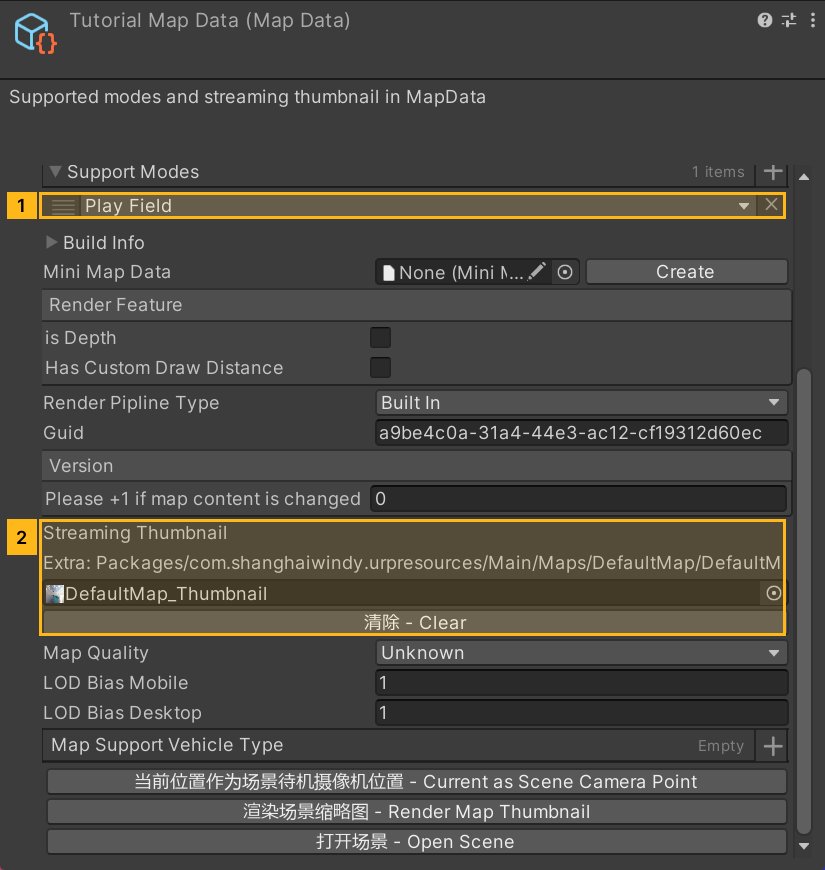
- Open the generated MapData. Give the map a display name, select its Supported Modes, and assign a 700 × 200 streaming thumbnail. Add the game modes you intend to test. Use an imported image for the streaming thumbnail.
Click to expand MCP actionsClick to collapse MCP actions
[
  {
    "tool": "invoke",
    "arguments": {
      "path": "static:UnityEditor.AssetDatabase/CreateAsset",
      "args": [
        "@static:UnityEngine.ScriptableObject/CreateInstance(ShanghaiWindy.Core.MapData)",
        "${map}"
      ]
    },
    "expect": {
      "contains": "OK:"
    }
  },
  {
    "tool": "inspect_set",
    "arguments": {
      "path": "asset:${map}/guid",
      "value": "a9be4c0a-31a4-44e3-ac12-cf19312d60ec"
    },
    "expect": {
      "contains": "OK:"
    }
  },
  {
    "tool": "invoke",
    "arguments": {
      "path": "static:UnityEditor.AssetDatabase/AssetPathToGUID",
      "args": [
        "${thumbnail}"
      ]
    },
    "expect": {
      "contains": "(String)"
    },
    "capture": {
      "thumbnailGuid": {
        "regex": "\\(String\\) ([a-f0-9]{32})"
      }
    }
  },
  {
    "tool": "invoke",
    "arguments": {
      "path": "static:UnityEngine.JsonUtility/FromJsonOverwrite",
      "args": [
        "{\"supportModes\":[5]}",
        "@asset:${map}"
      ]
    },
    "expect": {
      "contains": "OK:"
    }
  },
  {
    "tool": "inspect_set",
    "arguments": {
      "path": "asset:${map}/localizedMapName/defaultName",
      "value": "Tutorial Map"
    },
    "expect": {
      "contains": "OK:"
    }
  },
  {
    "tool": "inspect_set",
    "arguments": {
      "path": "asset:${map}/streamingThumbnail/assetGUID",
      "value": "${thumbnailGuid}"
    },
    "expect": {
      "contains": "OK:"
    }
  },
  {
    "tool": "inspect_set",
    "arguments": {
      "path": "asset:${map}/streamingThumbnail/extra",
      "value": "${thumbnail}"
    },
    "expect": {
      "contains": "OK:"
    }
  },
  {
    "tool": "invoke",
    "arguments": {
      "path": "static:UnityEditor.EditorUtility/SetDirty",
      "args": [
        "@asset:${map}"
      ]
    },
    "expect": {
      "contains": "OK:"
    }
  },
  {
    "tool": "invoke",
    "arguments": {
      "path": "static:UnityEditor.AssetDatabase/SaveAssets",
      "args": []
    },
    "expect": {
      "contains": "OK:"
    }
  },
  {
    "tool": "inspect",
    "arguments": {
      "path": "asset:${map}/supportModes/0"
    },
    "expect": {
      "contains": "(Mode) PlayField"
    }
  }
]
- Make sure the MapBuildGroup references your scene and MapData. Open the corresponding build pipeline and ModPackageData under
Assets/ModManager, and fill in the package metadata. Build the assets and.modpackfor the target platform, then install the package for testing.
Click to expand MCP actionsClick to collapse MCP actions
Replace tutorialmap with your map name. Set the ModPackageData name, description, author, and support link before building.
[
  {
    "tool": "inspect",
    "arguments": {
      "path": "asset:Assets/MapBuildGroup-tutorialmap.asset/mapDatas/0"
    }
  },
  {
    "tool": "modpack_plan",
    "arguments": {
      "pipeline": "Assets/ModManager/BuildPipline-Map-tutorialmap.asset"
    }
  },
  {
    "tool": "modpack_build",
    "arguments": {
      "pipeline": "Assets/ModManager/BuildPipline-Map-tutorialmap.asset"
    }
  }
]