VehicleTextData Usage Guide
中文 | English
Run this command at the repository root to replay the examples through the local Unity MCP. The command also captures screenshots in both languages.
python Docs/Manual/manual/tools/tutorials.py run vehicle-text-data --capture
Click to expand MCP actionsClick to collapse MCP actions
Prepare the teaching sample. The recipe provides ${variables}.
{
  "variables": {
    "asset": "${fixture}/Tutorial_VehicleTextData.asset",
    "sharedGun": "${fixture}/Tutorial_SharedGunData.asset",
    "vehicleData": "${fixture}/Tutorial_VehicleData.asset"
  },
  "calls": [
    {
      "tool": "invoke",
      "arguments": {
        "path": "static:UnityEditor.AssetDatabase/CreateFolder",
        "args": [
          "${fixtureParent}",
          "${folder}"
        ]
      },
      "expect": {
        "regex": "\\(String\\) [a-f0-9]{32}"
      }
    },
    {
      "tool": "invoke",
      "arguments": {
        "path": "static:UnityEditor.AssetDatabase/CopyAsset",
        "args": [
          "Packages/com.shanghaiwindy.coreresources/BuiltInVehicles/PatriotRadar/BuiltIn-Patriot-Radar_VehicleTextData.asset",
          "${asset}"
        ]
      },
      "expect": {
        "contains": "True"
      }
    },
    {
      "tool": "invoke",
      "arguments": {
        "path": "static:UnityEditor.AssetDatabase/CopyAsset",
        "args": [
          "Packages/com.shanghaiwindy.coreresources/BuiltInVehicles/PatriotRadar/BuiltIn-Patriot-Radar-SharedGun.asset",
          "${sharedGun}"
        ]
      },
      "expect": {
        "contains": "True"
      }
    },
    {
      "tool": "invoke",
      "arguments": {
        "path": "static:UnityEditor.AssetDatabase/AssetPathToGUID",
        "args": [
          "${asset}"
        ]
      },
      "capture": {
        "editorGuid": {
          "regex": "\\(String\\) ([a-f0-9]{32})"
        }
      }
    },
    {
      "tool": "inspect_set",
      "arguments": {
        "path": "asset:${asset}/AssetName",
        "value": "TutorialTank"
      },
      "expect": {
        "contains": "OK:"
      }
    },
    {
      "tool": "inspect_set",
      "arguments": {
        "path": "asset:${asset}/editorAssetGuid",
        "value": "${editorGuid}"
      },
      "expect": {
        "contains": "OK:"
      }
    },
    {
      "tool": "inspect_set",
      "arguments": {
        "path": "asset:${asset}/sharedGunData",
        "value": "@asset:${sharedGun}"
      },
      "expect": {
        "contains": "OK:"
      }
    },
    {
      "tool": "inspect_set",
      "arguments": {
        "path": "asset:${sharedGun}/tankFireParameter/fireSpread/aimTime",
        "value": "2"
      },
      "expect": {
        "contains": "OK:"
      }
    },
    {
      "tool": "inspect_set",
      "arguments": {
        "path": "asset:${sharedGun}/tankFireParameter/fireSpread/dispersion",
        "value": "0.35"
      },
      "expect": {
        "contains": "OK:"
      }
    }
  ]
}
VehicleTextData is the ScriptableObject that holds a vehicle's configuration. This page covers selecting the asset, locating fields, entering values and checking the result in the Unity Inspector.
1. Select the asset
- In the Project window, select the
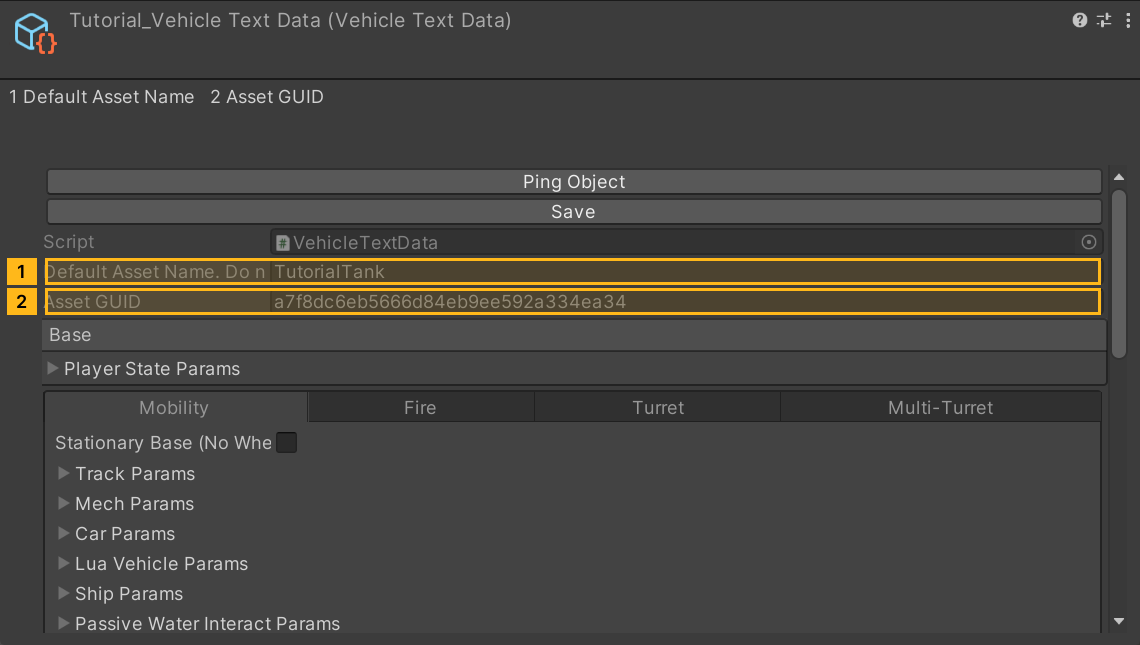
.assetwhose main type isVehicleTextData. Its create menu isA Panzer War - 装甲纷争/G Ground Vehicle - 地面载具/Base - 载具配置/Vehicle Configuration - 载具配置参数. If you create a new asset, assign it tovehicleTextDataon the targetVehicleData. The pictures use a separate teaching sample namedTutorial_VehicleTextData; select the actual vehicle asset you are authoring in your project. - Check that
AssetName(shown as Default Asset Name. Do not modify it!) andeditorAssetGuid(shown as Asset GUID) belong to the target vehicle. Both are read-only and cannot be edited here. editorAssetGuidis the Unity authoring-asset GUID, not the queuevehicleGuid. The queue vehicle ID comes fromVehicleInfo.GetLoadGUID(). The two are different and must not be substituted for each other.
Click to expand MCP actionsClick to collapse MCP actions
CreateAsset is the asset-creation equivalent; assigning a live object with inspect_set is the reference-slot equivalent. The sample is assigned to a separate VehicleData. Read-only identifiers are queried only.
[
  {
    "tool": "invoke",
    "arguments": {
      "path": "static:UnityEditor.AssetDatabase/CreateAsset",
      "args": [
        "@static:UnityEngine.ScriptableObject/CreateInstance(ShanghaiWindy.Core.VehicleTextData)",
        "${fixture}/Tutorial_NewVehicleTextData.asset"
      ]
    },
    "expect": {
      "contains": "OK:"
    }
  },
  {
    "tool": "invoke",
    "arguments": {
      "path": "static:UnityEditor.AssetDatabase/CreateAsset",
      "args": [
        "@static:UnityEngine.ScriptableObject/CreateInstance(ShanghaiWindy.Core.VehicleData)",
        "${vehicleData}"
      ]
    },
    "expect": {
      "contains": "OK:"
    }
  },
  {
    "tool": "inspect_set",
    "arguments": {
      "path": "asset:${vehicleData}/vehicleTextData",
      "value": "@asset:${asset}"
    },
    "expect": {
      "contains": "OK:"
    }
  },
  {
    "tool": "inspect_set",
    "arguments": {
      "path": "static:UnityEditor.Selection/activeObject",
      "value": "@asset:${asset}"
    },
    "expect": {
      "contains": "OK:"
    }
  },
  {
    "tool": "inspect",
    "arguments": {
      "path": "asset:${asset}/AssetName"
    },
    "expect": {
      "contains": "TutorialTank"
    }
  },
  {
    "tool": "inspect",
    "arguments": {
      "path": "asset:${asset}/editorAssetGuid"
    },
    "expect": {
      "contains": "${editorGuid}"
    }
  }
]
2. Set HP and view range
- Expand
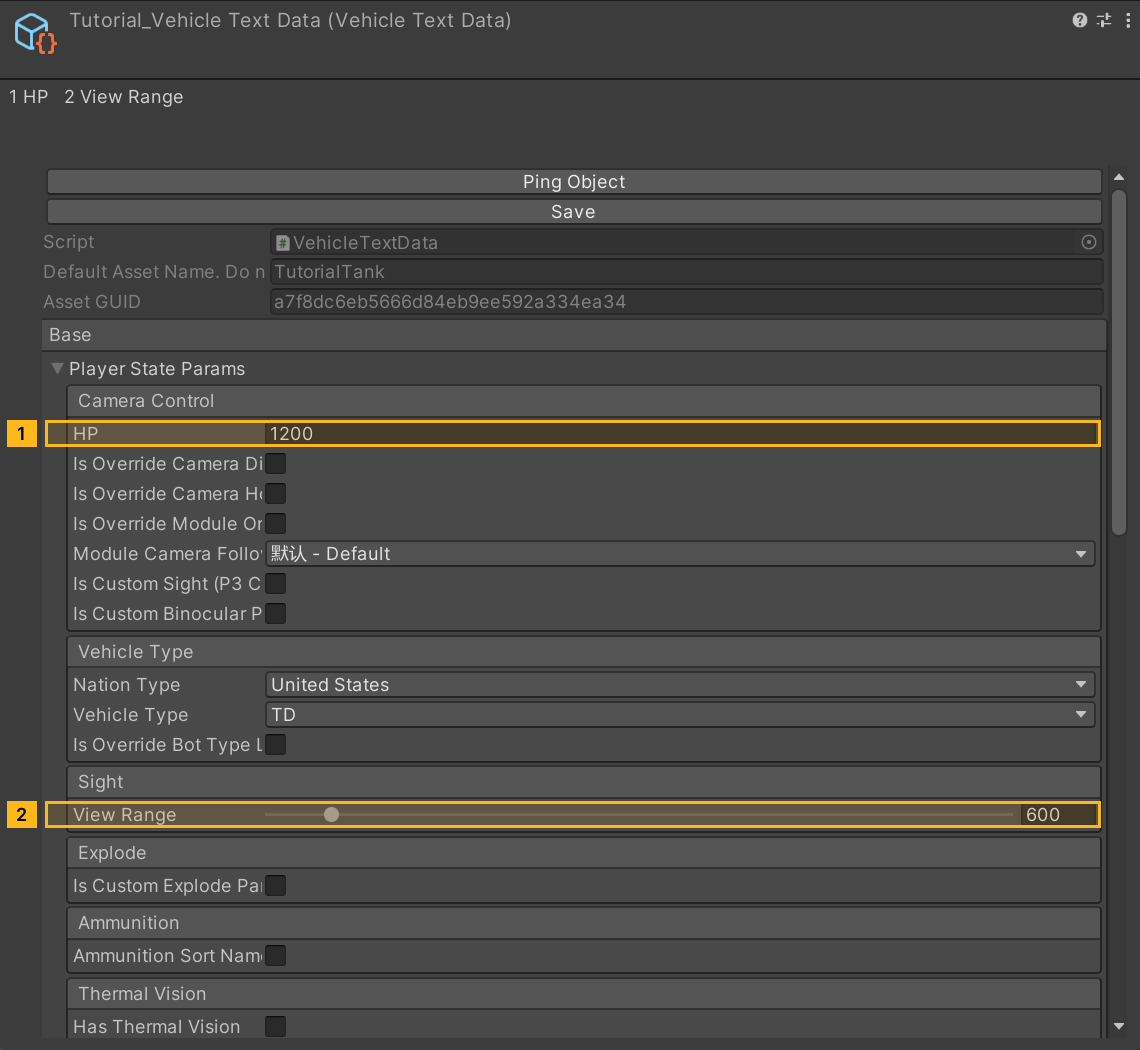
PSParameter. It is under theBaseBoxGroup and is labelled Player State Params. - Inside
PSParameter, findPSParameter.Healthunder the Camera Control group; it is labelled HP. The code default is 1200, and this example also uses the teaching value 1200. - In the same
PSParameter, findPSParameter.viewRangeunder the Sight group; it is labelled View Range. The allowed range is 220–5000, the code default is 220, and this example uses the teaching value 600. - Save the asset, then reselect it and confirm HP and View Range were written to the target asset rather than another one.
HP=1200 and viewRange=600 are teaching values only, not official balance guidance.
Click to expand MCP actionsClick to collapse MCP actions
Paths use real code field names and remain stable across UI languages. Asset writes save the asset; reselect and read back the values to verify.
[
  {
    "tool": "inspect_set",
    "arguments": {
      "path": "asset:${asset}/PSParameter/Health",
      "value": "1200"
    },
    "expect": {
      "contains": "OK:"
    }
  },
  {
    "tool": "inspect_set",
    "arguments": {
      "path": "asset:${asset}/PSParameter/viewRange",
      "value": "600"
    },
    "expect": {
      "contains": "OK:"
    }
  },
  {
    "tool": "invoke",
    "arguments": {
      "path": "static:UnityEditor.AssetDatabase/SaveAssets",
      "args": []
    },
    "expect": {
      "contains": "OK:"
    }
  },
  {
    "tool": "inspect_set",
    "arguments": {
      "path": "static:UnityEditor.Selection/activeObject",
      "value": "null"
    },
    "expect": {
      "contains": "OK:"
    }
  },
  {
    "tool": "inspect_set",
    "arguments": {
      "path": "static:UnityEditor.Selection/activeObject",
      "value": "@asset:${asset}"
    },
    "expect": {
      "contains": "OK:"
    }
  },
  {
    "tool": "inspect",
    "arguments": {
      "path": "asset:${asset}/PSParameter/Health"
    },
    "expect": {
      "contains": "1200"
    }
  },
  {
    "tool": "inspect",
    "arguments": {
      "path": "asset:${asset}/PSParameter/viewRange"
    },
    "expect": {
      "contains": "600"
    }
  }
]
3. Advanced groups
Select the relevant Mobility, Fire, Turret or Multi-Turret tab before locating a field below. The Misc group is below the tabs.
| Field | Inspector group and label | Visibility and read behavior |
|---|---|---|
sharedGunData |
Shared Gun Data (Fire) | Always shown; when set, GetTankFireParam() returns its tankFireParameter. |
TFParameter |
Tank Fire Params (Fire) | Shown only when sharedGunData is empty; GetTankFireParam() then returns it. |
sharedTurretData |
Shared Turret Data (Turret) | Always shown; when set, GetTurretParam() returns its turretParameter. |
MTParameter |
Turret Params (Turret) | Shown only when sharedTurretData is empty; GetTurretParam() then returns it. |
PTCParameter |
Track Params (Mobility) | Shown only when GetGroundType() returns TrackController, i.e. IsTrackController() is true. |
MechParameter |
Mech Params (Mobility) | Enable isMech for the mech controller. Configure turn response, walking effects, and flight. |
CarControllerParameter |
Car Params (Mobility) | Older data still appears here. The current GetGroundType() ignores this field. Follow the wheel setup guide for a wheeled vehicle. |
MultiFireSystemData |
Old Multi-Turret (Deprecated) | Legacy multi-turret list; do not add it to new vehicles. |
simpleVehicleFireSystemParameters |
New Multi-Turret | Current multi-turret list; each element is a SimpleVehicleFireSystemParameter. |
vehicleSelfExplosionParams |
Self Explosion Params (Misc) | An array of VehicleSelfExplosionTextParameter; fill it element by element. |
PTCParameter visibility follows the order inside GetGroundType(): isStationary → Stationary, MechParameter.isMech → MechController, LuaVehicleControllerParameter.isLua → Lua, ShipControllerParameter.isShip → Ship, and only the remaining case returns TrackController. A tracked model does not by itself guarantee the field.
sharedGunData and sharedTurretData are shared references: when several vehicles point to the same asset, edits affect every referencing vehicle; use TFParameter or MTParameter only when no shared reference is assigned. The teaching sample keeps a sharedGunData reference, so TFParameter is hidden there; this does not affect the HP and View Range steps above.
Configure movement, firing, the turret, and self-destruction
- For tracks, configure power and forward and reverse speed under Mobility. Assign TankWheelCollider and Track Data before setting up the suspension. Wheels · Track suspension
- Under Fire, choose the shells, ammo capacity, reload time, and firing sound. Set muzzle velocity on the selected shell asset. The gun parameters control recoil scale and dispersion. Use a shared gun asset when several vehicles need the same gun settings.
- Under Turret, set the traverse range, barrel elevation speed, and maximum elevation and depression. For a new secondary weapon, use
simpleVehicleFireSystemParametersin the multi-turret tab to bind model nodes and independent firing data. For existing vehicles, see the legacy paths and offsets. - To configure an in-game self-destruct effect, add an entry under
vehicleSelfExplosionParamsin the miscellaneous settings. Assign the model'sexplosionPathand put a SelfExplodeBullet inexplosionParam.explosionData. The asset provides range and damage, and the script determines when the effect fires.
Click to expand MCP actionsClick to collapse MCP actions
MCP paths locate advanced data and visibility conditions directly. The capture window cannot yet select Odin tabs automatically; Codex must add that capability before a tutorial needs such a capture. This group does not alter advanced settings.
[
  {
    "tool": "inspect",
    "arguments": {
      "path": "asset:${asset}/sharedGunData"
    },
    "expect": {
      "contains": "SharedGunData"
    }
  },
  {
    "tool": "inspect",
    "arguments": {
      "path": "asset:${asset}/noSharedGunData"
    },
    "expect": {
      "contains": "False"
    }
  },
  {
    "tool": "inspect",
    "arguments": {
      "path": "asset:${asset}/noSharedTurretData"
    }
  },
  {
    "tool": "invoke",
    "arguments": {
      "path": "asset:${asset}/GetTankFireParam",
      "args": []
    },
    "expect": {
      "contains": "TankFireParameter"
    }
  },
  {
    "tool": "invoke",
    "arguments": {
      "path": "asset:${asset}/GetTurretParam",
      "args": []
    },
    "expect": {
      "contains": "TurretParameter"
    }
  },
  {
    "tool": "invoke",
    "arguments": {
      "path": "asset:${asset}/GetGroundType",
      "args": []
    },
    "expect": {
      "contains": "TrackController"
    }
  },
  {
    "tool": "inspect",
    "arguments": {
      "path": "asset:${asset}/PTCParameter"
    }
  },
  {
    "tool": "inspect",
    "arguments": {
      "path": "asset:${asset}/MultiFireSystemData"
    }
  },
  {
    "tool": "inspect",
    "arguments": {
      "path": "asset:${asset}/simpleVehicleFireSystemParameters"
    }
  },
  {
    "tool": "inspect",
    "arguments": {
      "path": "asset:${asset}/vehicleSelfExplosionParams"
    }
  },
  {
    "expect": {
      "contains": "(Single)"
    },
    "tool": "inspect",
    "arguments": {
      "path": "asset:${asset}/MechParameter/timeToFullyTurn"
    }
  },
  {
    "expect": {
      "contains": "(Boolean)"
    },
    "tool": "inspect",
    "arguments": {
      "path": "asset:${asset}/CarControllerParameter/isCar"
    }
  },
  {
    "expect": {
      "regex": "Count=|\\(VehicleSelfExplosionTextParameter"
    },
    "tool": "inspect",
    "arguments": {
      "path": "asset:${asset}/vehicleSelfExplosionParams"
    }
  }
]
4. Check
- Confirm
AssetNameandeditorAssetGuidare unchanged and HP and View Range were written to the target asset. - An Inspector screenshot proves only field positions and labels, not runtime behavior; confirm actual behavior with a check in game.
- If you later adjust advanced parameters, check the visibility conditions in the table above first, then look for the field in its group.
Click to expand MCP actionsClick to collapse MCP actions
This recipe verifies the asset reference, identifiers and persisted fields. The sample has no complete driveable model, so gameplay is not verified. A successful capture is not a runtime pass.
[
  {
    "tool": "inspect",
    "arguments": {
      "path": "asset:${vehicleData}/vehicleTextData/name"
    },
    "expect": {
      "contains": "Tutorial_VehicleTextData"
    }
  },
  {
    "tool": "inspect",
    "arguments": {
      "path": "asset:${asset}/AssetName"
    },
    "expect": {
      "contains": "TutorialTank"
    }
  },
  {
    "tool": "inspect",
    "arguments": {
      "path": "asset:${asset}/editorAssetGuid"
    },
    "expect": {
      "contains": "${editorGuid}"
    }
  },
  {
    "tool": "inspect",
    "arguments": {
      "path": "asset:${asset}/PSParameter/Health"
    },
    "expect": {
      "contains": "1200"
    }
  },
  {
    "tool": "inspect",
    "arguments": {
      "path": "asset:${asset}/PSParameter/viewRange"
    },
    "expect": {
      "contains": "600"
    }
  }
]