Configure a Wheeled Vehicle
中文 | English
Run this command at the repository root to replay the examples through the local Unity MCP. The command also captures screenshots in both languages.
python Docs/Manual/manual/tools/tutorials.py run physics-wheels --capture
Click to expand MCP actionsClick to collapse MCP actions
Prepare the teaching sample. The recipe provides ${variables}.
{
  "variables": {
    "vehicle": "${fixture}/Tutorial_WheeledVehicle.asset",
    "model": "${fixture}/Tutorial_WheeledBody.prefab",
    "collider": "${fixture}/Tutorial_WheelCollider.prefab"
  },
  "calls": [
    {
      "tool": "invoke",
      "arguments": {
        "path": "static:UnityEditor.AssetDatabase/CreateFolder",
        "args": [
          "${fixtureParent}",
          "${folder}"
        ]
      },
      "expect": {
        "regex": "\\(String\\) [a-f0-9]{32}"
      }
    }
  ]
}
Current vehicles use the wheeled mode of TrackController. The old guide used NPhysicCarController, Rigidbody, CenterOfMass, and NPhysic on the hull root, with WheelController and a friction preset on each wheel. These names help identify an older setup during migration. The current mode and wheel settings use PTCParameter and the collider templates below.
1. Prepare the hull and wheel nodes
- Start from the vehicle setup guide. Under the visual model root, create
WheelswithFrontLeft,FrontRight,RearLeft, andRearRightas its children. Check the wheel origins from the side and front and make sure they are centered on their axles. In the cooked prefab, the builder createsVehicleDynamicsas a sibling ofWheels. - The builder uses an existing Rigidbody on the model root or creates one from the vehicle parameters. To adjust the center of gravity, open VehicleData → Edit, move the orange Center Of Gravity node, and press K in Scene view to save it.
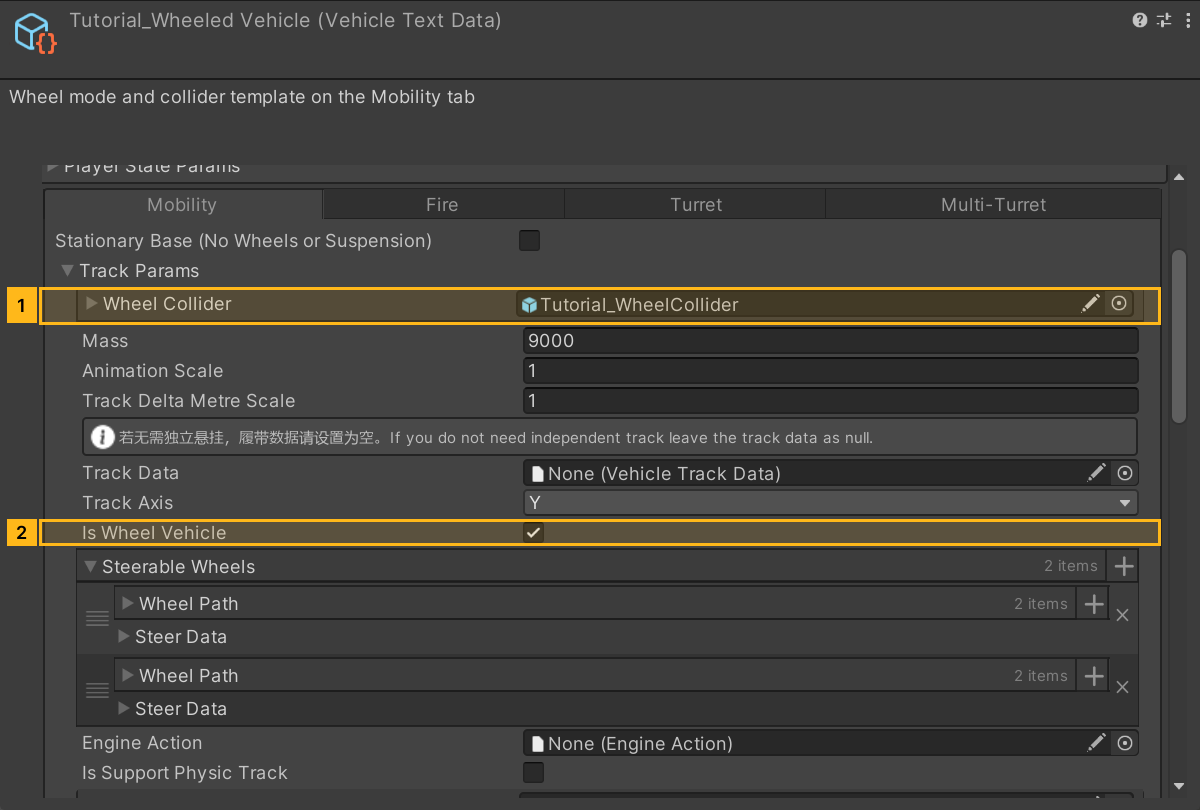
The picture shows the finished Mobility configuration. TankWheelCollider supplies the tire collider parameters and isWheelVehicle enables wheeled mode.
Click to expand MCP actionsClick to collapse MCP actions
[
  {
    "tool": "prefab_edit",
    "arguments": {
      "json": {
        "path": "${model}",
        "mode": "create",
        "component": "UnityEngine.Rigidbody",
        "children": [
          "VehicleDynamics",
          "Wheels/FrontLeft",
          "Wheels/FrontRight",
          "Wheels/RearLeft",
          "Wheels/RearRight"
        ]
      }
    },
    "expect": {
      "equals": {
        "ok": true
      }
    }
  },
  {
    "tool": "invoke",
    "arguments": {
      "path": "static:UnityEditor.AssetDatabase/CopyAsset",
      "args": [
        "Packages/com.shanghaiwindy.coreresources/BuiltInVehicles/PatriotRadar/BuiltIn-Patriot-Radar_VehicleTextData.asset",
        "${vehicle}"
      ]
    },
    "expect": {
      "contains": "(Boolean) True"
    }
  },
  {
    "tool": "inspect_set",
    "arguments": {
      "path": "asset:${vehicle}/isStationary",
      "value": "false"
    },
    "expect": {
      "contains": "OK:"
    }
  }
]
2. Group wheels by drive and steering
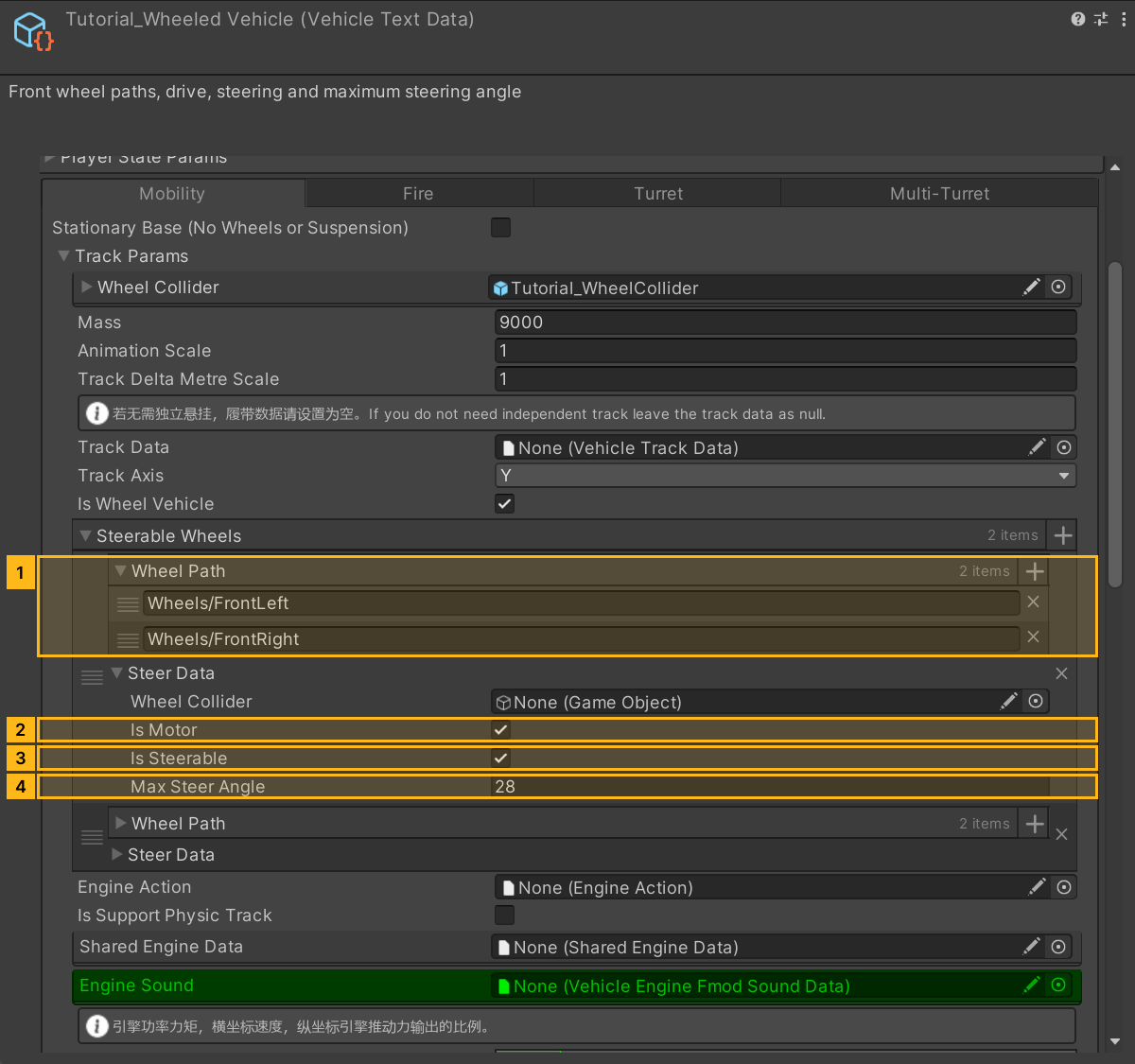
Open the Mobility tab of VehicleTextData and expand PTCParameter. Assign a template prefab with a Unity WheelCollider to TankWheelCollider. The runtime wheels copy its radius, suspension and friction settings. A group can override this with steerData.wheelCollider. An empty group template falls back to the main template.
Add two entries to steerableWheels. All wheels paths are resolved relative to the parent of VehicleDynamics.
| Group | Paths | isMotor |
isSteerable |
maxSteerAngle |
|---|---|---|---|---|
| Front | Wheels/FrontLeft, Wheels/FrontRight |
true | true | 28° |
| Rear | Wheels/RearLeft, Wheels/RearRight |
true | false | 0° |
Click to expand MCP actionsClick to collapse MCP actions
[
  {
    "tool": "invoke",
    "arguments": {
      "path": "static:UnityEditor.AssetDatabase/CopyAsset",
      "args": [
        "Packages/com.shanghaiwindy.coreresources/BuiltInVehicles/PatriotRadar/BuiltIn-Patriot-Radar_WheelCollider.prefab",
        "${collider}"
      ]
    },
    "expect": {
      "contains": "(Boolean) True"
    }
  },
  {
    "tool": "inspect_set",
    "arguments": {
      "path": "asset:${vehicle}/PTCParameter/TankWheelCollider",
      "value": "@asset:${collider}"
    },
    "expect": {
      "contains": "OK:"
    }
  },
  {
    "tool": "inspect_set",
    "arguments": {
      "path": "asset:${vehicle}/PTCParameter/steerableWheels",
      "value": "[{\"wheels\": [\"Wheels/FrontLeft\", \"Wheels/FrontRight\"], \"steerData\": {\"isMotor\": true, \"isSteerable\": true, \"maxSteerAngle\": 28}}, {\"wheels\": [\"Wheels/RearLeft\", \"Wheels/RearRight\"], \"steerData\": {\"isMotor\": true, \"isSteerable\": false, \"maxSteerAngle\": 0}}]"
    },
    "expect": {
      "contains": "OK:"
    }
  }
]
3. Enable wheeled mode
Enable isWheelVehicle in the same Mobility tab. This example uses no track data, so TrackData stays empty. Keep Stationary Base off so the ordinary ground vehicle uses TrackController.
Click to expand MCP actionsClick to collapse MCP actions
[
  {
    "tool": "inspect_set",
    "arguments": {
      "path": "asset:${vehicle}/PTCParameter/isWheelVehicle",
      "value": "true"
    },
    "expect": {
      "contains": "OK:"
    }
  },
  {
    "tool": "inspect_set",
    "arguments": {
      "path": "asset:${vehicle}/PTCParameter/TrackData",
      "value": "null"
    },
    "expect": {
      "contains": "OK:"
    }
  }
]
4. Save and check
Save the hull and configuration, then pack again. Check that each configured path points to one axle node. Drive on flat ground in the Vehicle Playground to check tire contact, front-wheel steering, and rear-wheel alignment, then try a slope. Check model axes and steering groups if a wheel faces the wrong way. Check the group's actual collider template if the tires lose grip unexpectedly.
Click to expand MCP actionsClick to collapse MCP actions
[
  {
    "tool": "inspect",
    "arguments": {
      "path": "asset:${vehicle}/GetGroundType()"
    },
    "expect": {
      "contains": "TrackController"
    }
  },
  {
    "tool": "inspect",
    "arguments": {
      "path": "asset:${vehicle}/GetEngineParam()/isWheelVehicle"
    },
    "expect": {
      "contains": "True"
    }
  },
  {
    "tool": "inspect",
    "arguments": {
      "path": "asset:${vehicle}/GetEngineParam()/TankWheelCollider/WheelCollider/radius"
    },
    "expect": {
      "contains": "(Single)"
    }
  },
  {
    "tool": "inspect",
    "arguments": {
      "path": "asset:${vehicle}/GetEngineParam()/steerableWheels/0/steerData/maxSteerAngle"
    },
    "expect": {
      "contains": "28"
    }
  },
  {
    "tool": "inspect",
    "arguments": {
      "path": "asset:${model}/Wheels/FrontLeft/name"
    },
    "expect": {
      "contains": "FrontLeft"
    }
  },
  {
    "tool": "inspect",
    "arguments": {
      "path": "asset:${model}/Wheels/FrontRight/name"
    },
    "expect": {
      "contains": "FrontRight"
    }
  },
  {
    "tool": "inspect",
    "arguments": {
      "path": "asset:${model}/Wheels/RearLeft/name"
    },
    "expect": {
      "contains": "RearLeft"
    }
  },
  {
    "tool": "inspect",
    "arguments": {
      "path": "asset:${model}/Wheels/RearRight/name"
    },
    "expect": {
      "contains": "RearRight"
    }
  }
]