Tank Radar Settings
中文 | English
Run this command at the repository root to replay the examples through the local Unity MCP. The command also captures screenshots in both languages.
python Docs/Manual/manual/tools/tutorials.py run tank-radar-settings --capture
Click to expand MCP actionsClick to collapse MCP actions
Prepare the teaching sample. The recipe provides ${variables}.
{
  "variables": {
    "text": "${fixture}/Tutorial_RadarVehicleText.asset"
  },
  "calls": [
    {
      "tool": "invoke",
      "arguments": {
        "path": "static:UnityEditor.AssetDatabase/CreateFolder",
        "args": [
          "${fixtureParent}",
          "${folder}"
        ]
      },
      "expect": {
        "contains": "(String)"
      }
    },
    {
      "tool": "invoke",
      "arguments": {
        "path": "static:UnityEditor.AssetDatabase/CopyAsset",
        "args": [
          "Packages/com.shanghaiwindy.coreresources/BuiltInVehicles/PatriotRadar/BuiltIn-Patriot-Radar_VehicleTextData.asset",
          "${text}"
        ]
      },
      "expect": {
        "contains": "True"
      }
    }
  ]
}
This guide is for players who already have a working tank and want to enable the AA radar in vehicle text data, tune scan parameters, and check detection and lock behavior in game.
1. Enable the radar
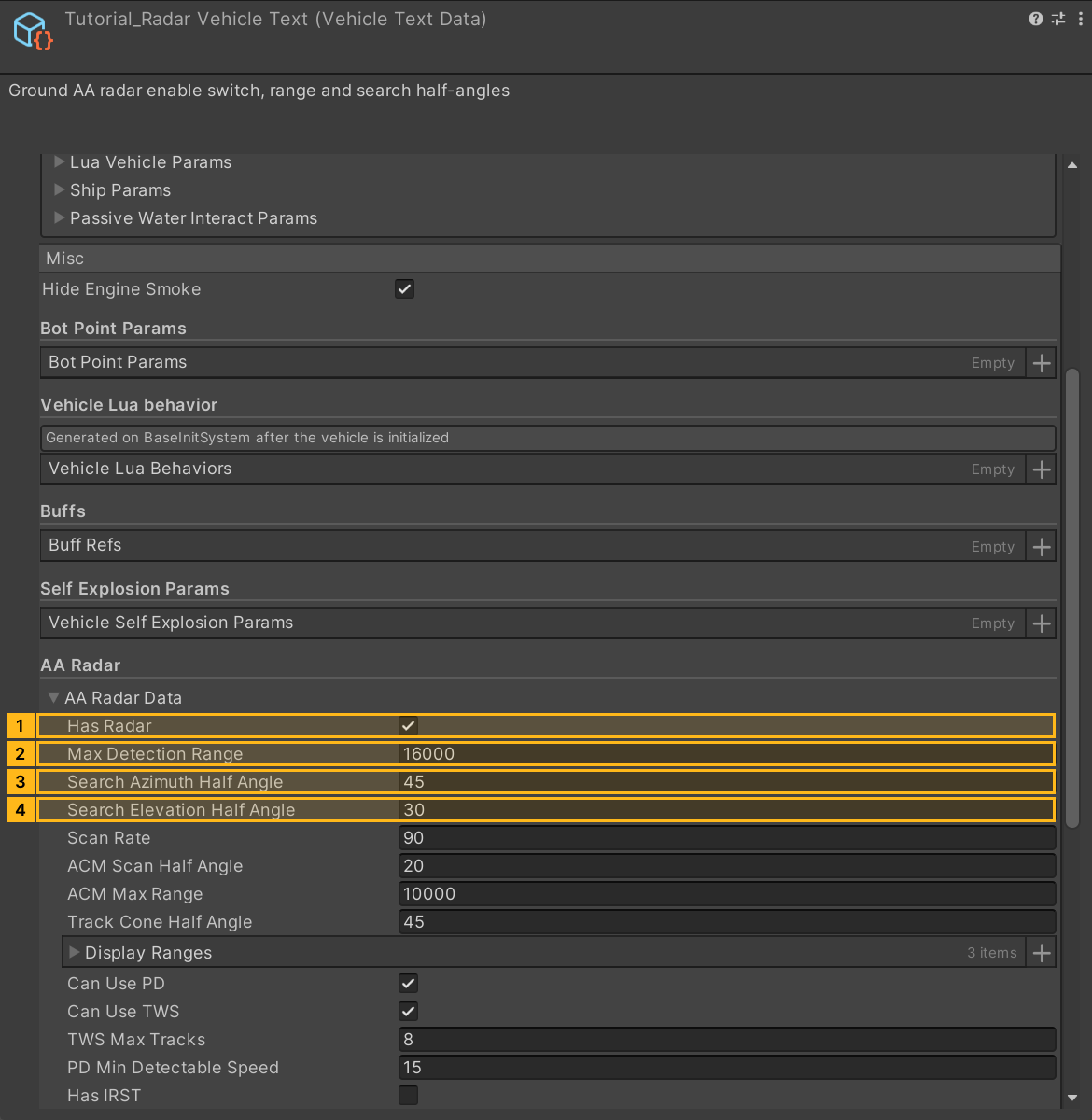
Select the tank's assigned VehicleTextData, open Misc → AA Radar, expand AA Radar Data (groundAARadarData), and turn on Has Radar (hasRadar). That field defaults to false.
The vehicle loads the ground scan from this data and takes its aim frame from the turret transform, with the hull as a fallback. For a separate decorative rotating antenna, add VehicleRadarAttachment in the Universal slot. It rotates radarTransform along a local axis at rotateSpeed in degrees per second, and it stays independent from the functional radar. The ground setting is also independent of aircraft radar and of Lua display integrations.
Click to expand MCP actionsClick to collapse MCP actions
[
  {
    "tool": "inspect_set",
    "arguments": {
      "path": "asset:${text}/groundAARadarData/hasRadar",
      "value": "true"
    },
    "expect": {
      "contains": "OK:"
    }
  },
  {
    "tool": "inspect",
    "arguments": {
      "path": "asset:${text}/groundAARadarData/hasRadar"
    },
    "expect": {
      "contains": "True"
    }
  }
]
2. Tune the scan
The table below lists units and defaults, or describes how the field behaves.
| Field | Unit or default | Notes |
|---|---|---|
maxDetectionRange |
metres, default 15000 | Reference range for a target with a radar cross-section of 5 m² |
searchAzimuthHalfAngle |
degrees, default 45 | Azimuth search half angle |
searchElevationHalfAngle |
degrees, default 30 | Elevation search half angle |
scanRate |
degrees per second, default 60 | Scan rate in directional mode |
isFullRotation |
default false | Whether the scan runs full rotation |
fullRotationRate |
degrees per second, default 60 | Full rotation rate, about 6 seconds per turn, applies to SRC and TWS, keep the rate positive |
minElevationAngle |
degrees, default 2 | Minimum elevation |
detectGroundTargets |
default false | Bypasses elevation clutter rejection and still respects coverage and range limits |
displayRanges |
metres, defaults 2500/5000/10000/20000 | Display scale steps |
canUsePD |
default true | Whether PD mode is available |
canUseTWS |
default true | Whether TWS mode is available |
pdMinDetectableSpeed |
metres per second, default 30 | Radial speed threshold |
twsMaxTracks |
default 4 | TWS simultaneous track limit |
acmScanHalfAngle and acmMaxRange |
15 degrees, 8000 m | Air combat maneuver mode envelope |
trackConeHalfAngle |
30 degrees | Track mode envelope |
lockAcquireTime |
seconds, default 0.5 | Lock acquisition time |
The Patriot asset shows maxDetectionRange as 16000, so treat that number as a sample value and read its other fields from the asset itself. Enable hasIRST for infrared search. Its irstDetectionRange defaults to 10,000 m. You can also set chaff count, duration and cooldown, along with ECCM, IFF, and target type recognition (NCTR).
The decorative antenna speed controls the model. scanRate controls how fast the functional scan sweeps the sector.
Click to expand MCP actionsClick to collapse MCP actions
[
  {
    "tool": "inspect_set",
    "arguments": {
      "path": "asset:${text}/groundAARadarData/maxDetectionRange",
      "value": "16000"
    },
    "expect": {
      "contains": "OK:"
    }
  },
  {
    "tool": "inspect",
    "arguments": {
      "path": "asset:${text}/groundAARadarData/maxDetectionRange"
    },
    "expect": {
      "contains": "16000"
    }
  },
  {
    "tool": "inspect_set",
    "arguments": {
      "path": "asset:${text}/groundAARadarData/searchAzimuthHalfAngle",
      "value": "45"
    },
    "expect": {
      "contains": "OK:"
    }
  },
  {
    "tool": "inspect",
    "arguments": {
      "path": "asset:${text}/groundAARadarData/searchAzimuthHalfAngle"
    },
    "expect": {
      "contains": "45"
    }
  },
  {
    "tool": "inspect_set",
    "arguments": {
      "path": "asset:${text}/groundAARadarData/searchElevationHalfAngle",
      "value": "30"
    },
    "expect": {
      "contains": "OK:"
    }
  },
  {
    "tool": "inspect",
    "arguments": {
      "path": "asset:${text}/groundAARadarData/searchElevationHalfAngle"
    },
    "expect": {
      "contains": "30"
    }
  }
]
3. Runtime check
Repack the mod and possess the vehicle locally. Turn on the radar with the configured controls, bring an aircraft into the scan area, and compare target range and bearing, the lock, the range scale, and either the sector pointing or a single sweep while full rotation is allowed. If ground target detection is enabled, compare a ground target as well. To drive a model from the actual scan, use GetScanAzimuth as described in the RadarAPI display guide.
Figures and values in the editor verify field references and values, and detection and lock behavior require a game session. When troubleshooting, check the enable flag and asset link, the assigned control action, the turret frame, and the mode and clutter settings in that order.
Click to expand MCP actionsClick to collapse MCP actions
[
  {
    "tool": "inspect",
    "arguments": {
      "path": "asset:${text}/groundAARadarData/maxDetectionRange"
    },
    "expect": {
      "contains": "16000"
    }
  }
]
Click to expand MCP actionsClick to collapse MCP actions
Runtime test pending. Bind the vehicle entity ID and its VehicleInitSystem index. Read the work mode, switch it, and observe the scan azimuth. Use an eligible target for detection and lock testing.
[
  {
    "tool": "runtime_status",
    "arguments": {}
  },
  {
    "tool": "inspect",
    "arguments": {
      "path": "entity/${tankEntityId}"
    }
  },
  {
    "tool": "inspect",
    "arguments": {
      "path": "entity/${tankEntityId}/${vehicleComponentIndex}/GetRadarSystem()/WorkMode"
    }
  },
  {
    "tool": "invoke",
    "arguments": {
      "path": "entity/${tankEntityId}/${vehicleComponentIndex}/GetRadarSystem()/SwitchWorkMode",
      "args": []
    }
  },
  {
    "tool": "inspect",
    "arguments": {
      "path": "entity/${tankEntityId}/${vehicleComponentIndex}/GetRadarSystem()/ScanAzimuth"
    }
  }
]