Attach a Lua behavior to an object
中文 | English
Run this command at the repository root to replay the examples through the local Unity MCP. The command also captures screenshots in both languages.
python Docs/Manual/manual/tools/tutorials.py run lua-behavior-mono --capture
Click to expand MCP actionsClick to collapse MCP actions
Prepare the teaching sample. The recipe provides ${variables}.
{
  "variables": {
    "script": "${fixture}/ExampleBehavior.lua",
    "prefab": "${fixture}/Tutorial_LuaBehavior.prefab"
  },
  "calls": [
    {
      "tool": "invoke",
      "arguments": {
        "path": "static:UnityEditor.AssetDatabase/CreateFolder",
        "args": [
          "${fixtureParent}",
          "${folder}"
        ]
      },
      "expect": {
        "regex": "\\(String\\) [a-f0-9]{32}"
      }
    }
  ]
}
LuaBehaviorMono attaches a Lua script to a Unity scene object or prefab. This example checks the import and binding of a minimal behavior asset.
1. Create the behavior script
Save ExampleBehavior.lua under an asset folder in the Unity project. The project importer recognizes Behavior() as the behavior marker. Files under a LuaProject path are imported as plain text.
Behavior()
Property = {}

local ExampleBehavior = class("ExampleBehavior")

return ExampleBehavior
Click to expand MCP actionsClick to collapse MCP actions
[
  {
    "tool": "invoke",
    "arguments": {
      "path": "static:System.IO.File/WriteAllText",
      "args": [
        "${script}",
        "Behavior()\nProperty = {}\n\nlocal ExampleBehavior = class(\"ExampleBehavior\")\n\nreturn ExampleBehavior\n"
      ]
    },
    "expect": {
      "contains": "OK:"
    }
  },
  {
    "tool": "invoke",
    "arguments": {
      "path": "static:UnityEditor.AssetDatabase/ImportAsset",
      "args": [
        "${script}",
        "ForceSynchronousImport"
      ]
    },
    "expect": {
      "contains": "OK:"
    }
  }
]
2. Bind the component
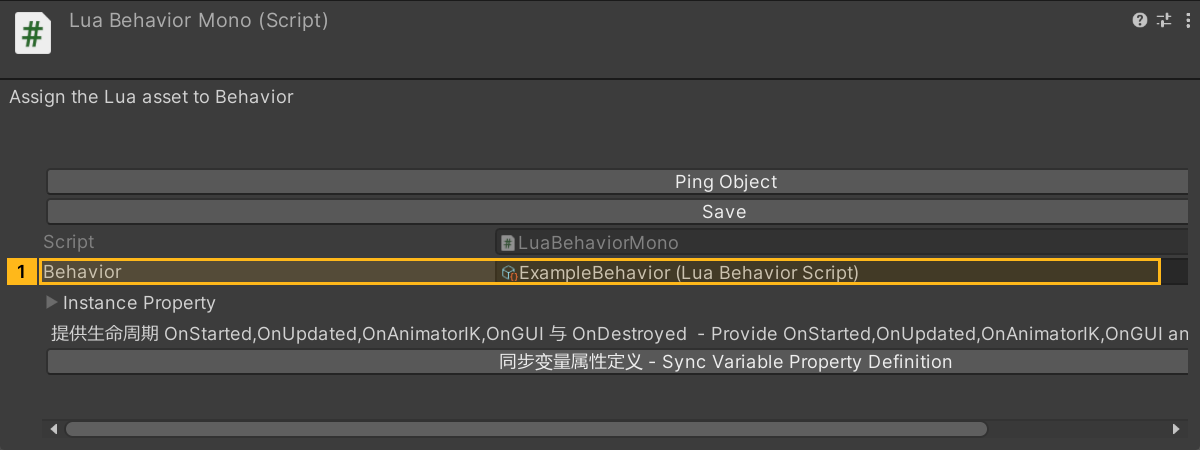
Open the target prefab, or select the target GameObject in the scene, then use Inspector > Add Component, search for LuaBehaviorMono, and add it. Drag the imported ExampleBehavior asset from the Project window into the Behavior field. That field takes the imported behavior asset, not the raw .lua text file.
If the script declares a Property table, use Sync Variable Property Definition to add missing instance fields, then set the value of each field on this instance. Field names must match the declared Property entries. Existing values for the same names are retained. See Lua properties for instance overrides.
Click to expand MCP actionsClick to collapse MCP actions
[
  {
    "tool": "prefab_edit",
    "arguments": {
      "json": {
        "path": "${prefab}",
        "mode": "create",
        "component": "ShanghaiWindy.Core.Lua.LuaBehaviorMono",
        "references": [
          {
            "property": "luaBehavior",
            "asset": "${script}",
            "type": "ShanghaiWindy.Core.Lua.LuaBehaviorScript"
          }
        ]
      }
    },
    "expect": {
      "equals": {
        "ok": true
      }
    }
  },
  {
    "tool": "invoke",
    "arguments": {
      "path": "asset:${prefab}/LuaBehaviorMono/instanceLuaProperty/OverrideNilPropertyFrom",
      "args": [
        "@asset:${script}/luaProperty"
      ]
    },
    "expect": {
      "contains": "OK:"
    }
  },
  {
    "tool": "invoke",
    "arguments": {
      "path": "static:UnityEditor.PrefabUtility/SavePrefabAsset",
      "args": [
        "@asset:${prefab}"
      ]
    },
    "expect": {
      "contains": "--- GameObject ---"
    }
  }
]
3. Save and verify
Save the prefab and check that Behavior still points to ExampleBehavior. At runtime, the component on the scene object starts the behavior. From the script, self.script:GetLuaComponent("ClassName") and self.script:GetNativeComponent("ComponentName") look up Lua components and native components on the same GameObject. See Hello World for a startup callback that prints a message.
Click to expand MCP actionsClick to collapse MCP actions
[
  {
    "tool": "inspect",
    "arguments": {
      "path": "asset:${prefab}/LuaBehaviorMono/luaBehavior/name"
    },
    "expect": {
      "contains": "(String) ExampleBehavior"
    }
  },
  {
    "tool": "inspect",
    "arguments": {
      "path": "asset:${prefab}/LuaBehaviorMono/luaBehavior/lua"
    },
    "expect": {
      "contains": "class(\"ExampleBehavior\")"
    }
  }
]